
Configure mapping
Mapping decides the value Feeden sends to Google for each product attribute: title, price, brand, GTIN, category and so on. Feeden ships with defaults that work for most stores. Change them only where your catalog needs something different.
Mapping lives in two places:
| Where | Applies to | Use it for |
|---|---|---|
| Settings → Mapping | Every product in every feed | The store-wide baseline: which Shopify field or metafield feeds each Google attribute. |
| Feed page → Custom rules for mapping | Only that feed, only the products matching the rule’s conditions | Exceptions: a different value for sale items, a collection, a vendor, one market… |
Store-wide mapping (Settings → Mapping)
Section titled “Store-wide mapping (Settings → Mapping)”Attribute mapping: size, color, material, pattern
Section titled “Attribute mapping: size, color, material, pattern”Google needs to know which of your Shopify options is the size, the color and so on, so it can group variants and show the right filters.
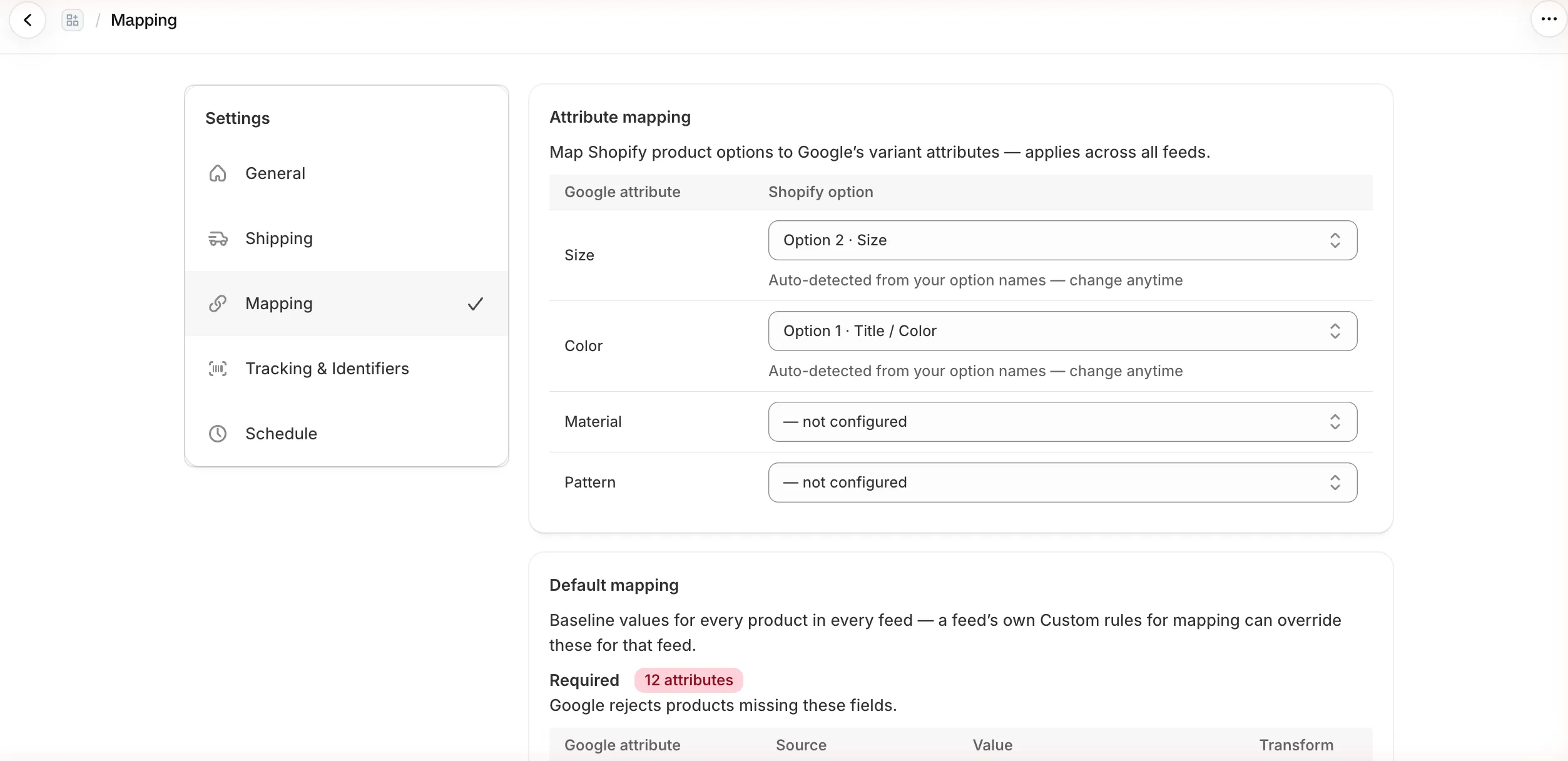
Feeden auto-detects these from your option names (for example an option called “Size” or “Color”). Check the result and fix it if needed — especially if your options have other names:
- Size, Color — pick the Shopify option (Option 1, 2 or 3) that holds it.
- Material, Pattern — leave — not configured unless you have an option for them.
This applies to all feeds, because option names belong to your whole catalog.
Default mapping: required attributes
Section titled “Default mapping: required attributes”The Required list holds the 12 attributes Google rejects products without. Each row has a Source, a Value and an optional Transform.
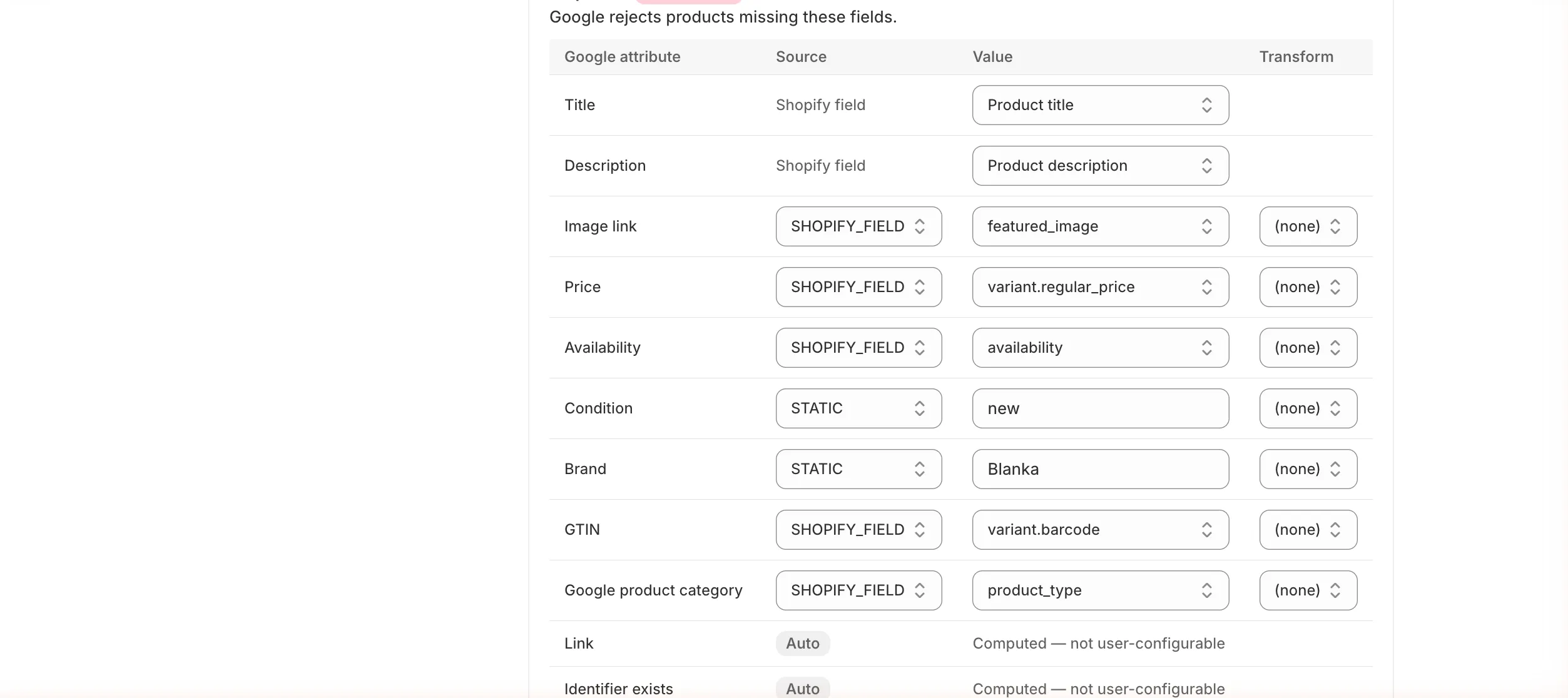
| Source | Value | Example |
|---|---|---|
| SHOPIFY_FIELD | A field from the product or variant | variant.barcode, vendor, product_type |
| STATIC | The same fixed text for every product | new for Condition, Acme for Brand |
| METAFIELD | A product or variant metafield you pick from the list | custom.gtin, custom.material |
Available Shopify fields: title, seo.title, body_html, seo.description, vendor, product_type, featured_image, variant.price, variant.compare_at_price, variant.regular_price, variant.sale_price, variant.barcode, variant.sku, variant.image, variant.title, availability.
Transforms clean a value before it’s sent: strip_html removes HTML tags, uppercase capitalises, truncate(160) cuts to 160 characters.
What Feeden does with the defaults:
- Title and Description — choose Product title or SEO title, and Product description or SEO description. If the SEO field is empty, Feeden falls back to the normal one.
- Price —
variant.regular_price: the compare-at price when a product is on sale, otherwise the normal price. Prices are taken per Market, in the Market’s currency, exactly as shoppers see them. - Availability — computed from inventory. “Continue selling when out of stock” is sent as
backorder, notout_of_stock. - GTIN —
variant.barcode. Only valid GTIN-8/12/13/14 barcodes are sent; anything else is dropped rather than rejected by Google. - Link, Identifier exists, Item group ID are computed automatically (badge Auto) and can’t be edited. Link becomes a checkout link if you turn on Checkout Link in Settings → Tracking & Identifiers.
Default mapping: recommended attributes
Section titled “Default mapping: recommended attributes”Select Show next to Recommended to see six optional attributes that help your listings perform better.
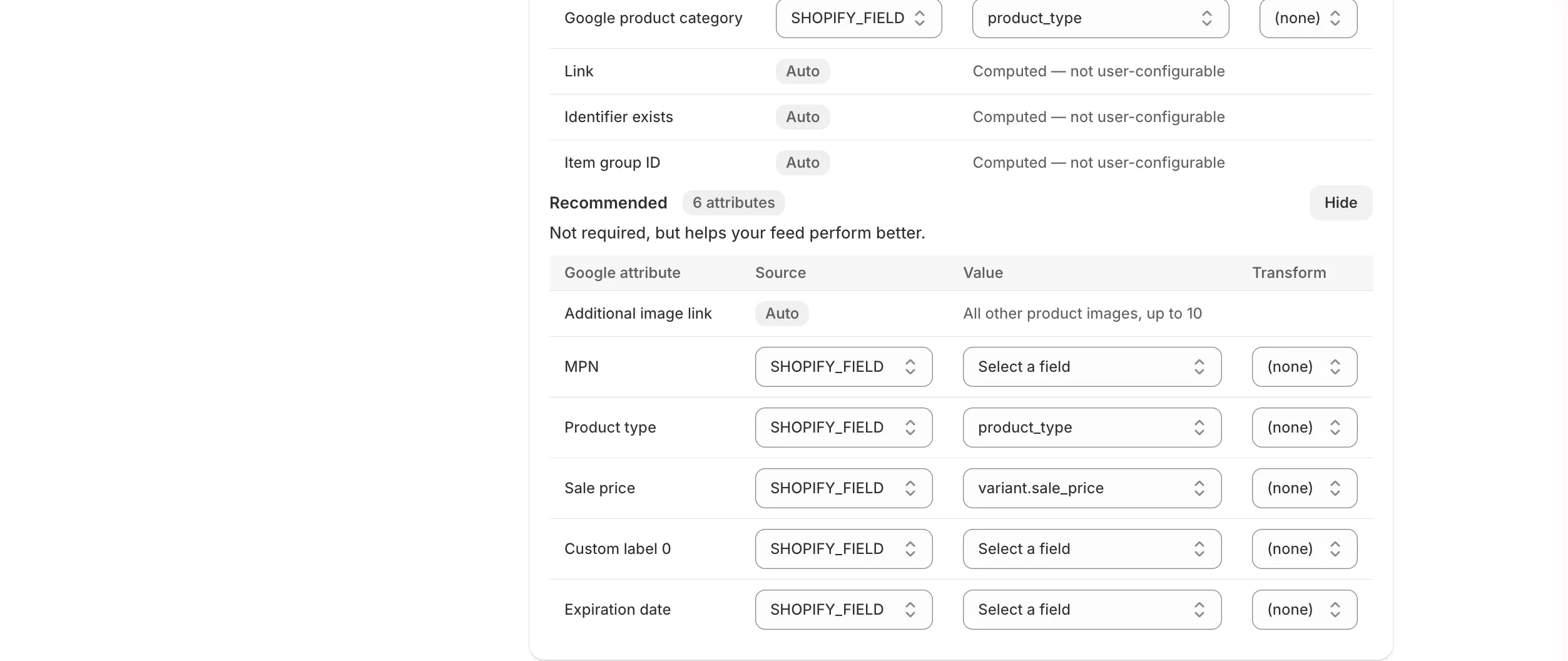
- Additional image link — all other product images, up to 10, added automatically.
- Sale price —
variant.sale_price: sent only when the current price is lower than the regular price. - MPN, Custom label 0, Expiration date — empty by default; pick a field or metafield if you use them.
Changes are saved with the Save bar at the top and applied to every feed on the next sync.
Per-feed exceptions (custom rules)
Section titled “Per-feed exceptions (custom rules)”A custom rule changes some attributes for the products that match its conditions, in one feed only. Everything the rule doesn’t override keeps using the default mapping.
-
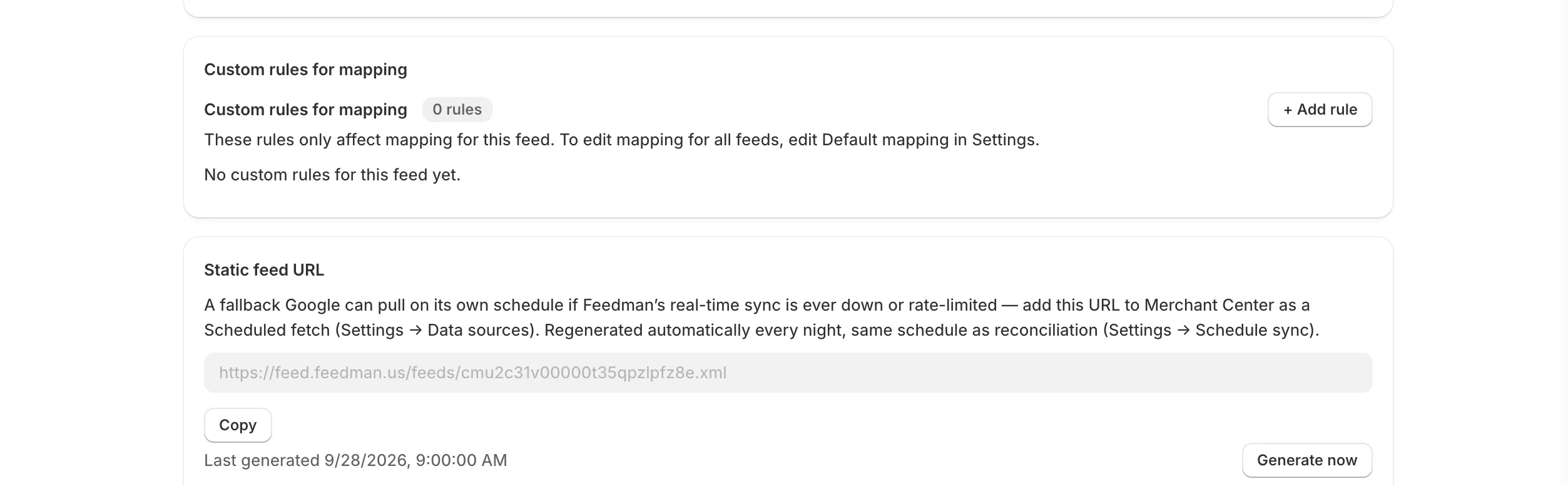
Go to Feeds, open a feed, and scroll to Custom rules for mapping. (You can also add rules while creating a feed.)
-
Select + Add rule and give the rule a name you’ll recognise later.
-
Under Conditions, select + Add condition and choose a field, an operator and a value.
- Fields: tag, collection, product type, vendor, metafield, product ID.
- Operators: equals, contains, in (one of a list), exists.
- Several conditions must all match. Leave Conditions empty to apply the rule to every product in the feed.
-
Under Field overrides, select + Add field override, pick the Google attribute, the source and the value.
-
Select Save rule.
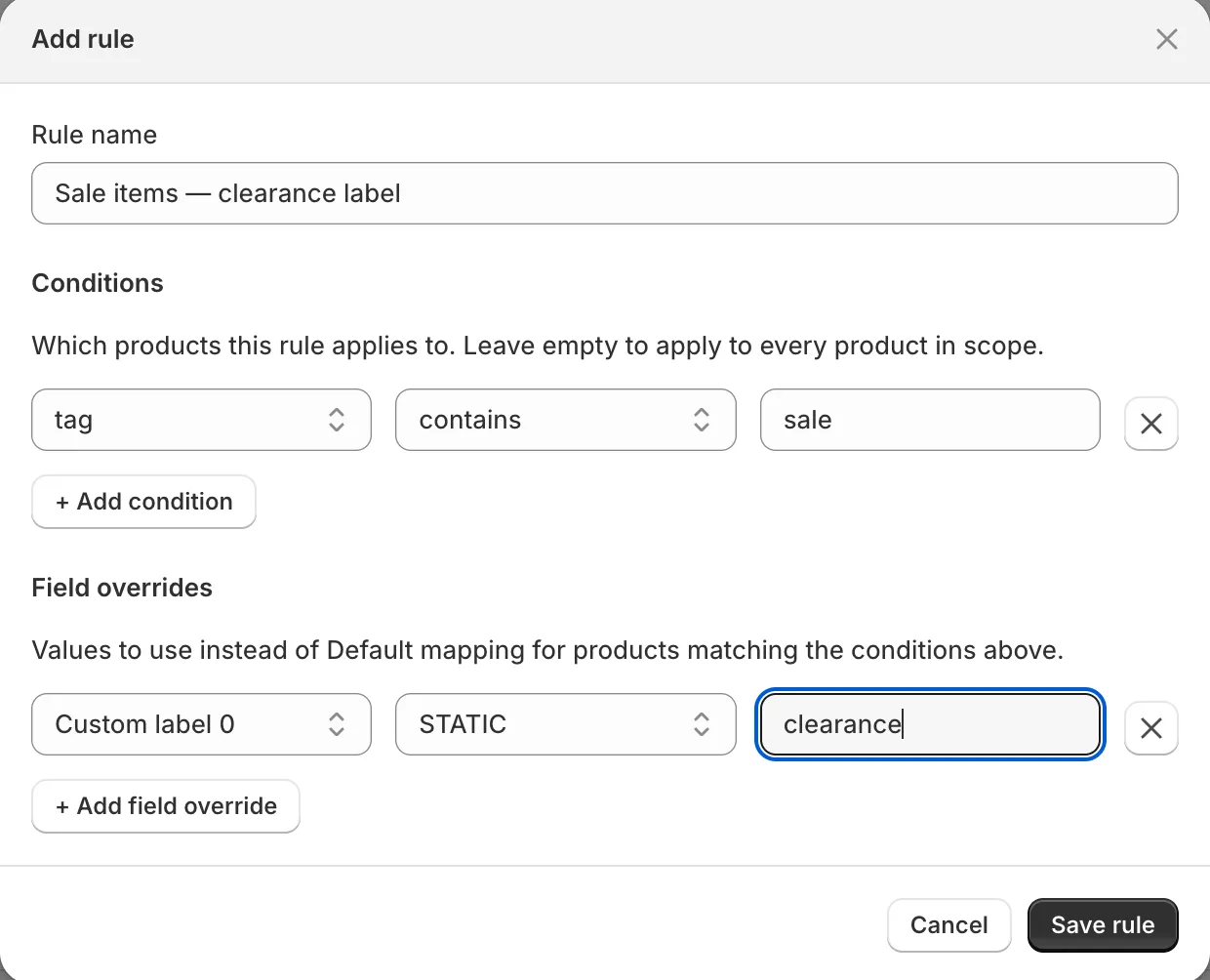
Which value wins
Section titled “Which value wins”For each product in a feed, Feeden looks for a value in this order:
- The feed’s custom rules that match the product.
- For Google product category, age group, gender and condition only: the feed’s Default product categorization (set on the feed page).
- The default mapping in Settings → Mapping.
- If a required attribute is still empty, the product is held back from that feed and listed in Manage Products — the rest of the feed keeps syncing.
Examples
Section titled “Examples”Brand from the Shopify vendor
Section titled “Brand from the Shopify vendor”You sell several brands and fill the Vendor field in Shopify. In Settings → Mapping, set Brand to SHOPIFY_FIELD → vendor instead of a fixed value.
GTIN stored in a metafield
Section titled “GTIN stored in a metafield”Your barcodes live in a metafield custom.gtin rather than the variant’s barcode field. Set GTIN to METAFIELD → custom.gtin. Feeden fetches that metafield for your whole catalog in the background; the source shows Fetching values… until it’s done.
If your barcode field holds internal warehouse codes, also set the feed’s Identifier strategy to Brand + MPN only (on the feed page) so they’re never sent as GTINs.
Clean titles for Google
Section titled “Clean titles for Google”Your product titles are long and marketing-heavy, but the SEO title is clean. In Default mapping → Title, choose SEO title. For descriptions full of HTML, choose Product description with the strip_html transform.
Label sale items for a separate campaign
Section titled “Label sale items for a separate campaign”You want sale items in their own Google Ads campaign. In the feed, add a rule tag contains sale → Custom label 0 = STATIC clearance (the screenshot above). In Google Ads, split your Performance Max or Shopping campaign by Custom label 0.
Refurbished products in one collection
Section titled “Refurbished products in one collection”Most products are new, but the Refurbished collection isn’t. Keep Condition = STATIC new in Settings, and add a feed rule collection equals Refurbished → Condition = STATIC refurbished.
A kids’ store
Section titled “A kids’ store”Every product is for children. On each feed, set Default product categorization → Default age group = kids and Default gender = unisex instead of mapping them product by product.
Common errors
Section titled “Common errors”| Message | Fix |
|---|---|
| Rule name is required. | Give the rule a name before saving. |
| Add at least one field override. | A rule without overrides does nothing — add one. |
| Each custom rule needs a name and at least one field override. | Shown when creating a feed with an incomplete rule. |