
Set up a feed
A feed sends a set of products to Google for one country. You can create as many feeds as you want, and one product can be in several feeds. Getting the feed structure right up front makes your Google Ads campaigns much easier to manage later.
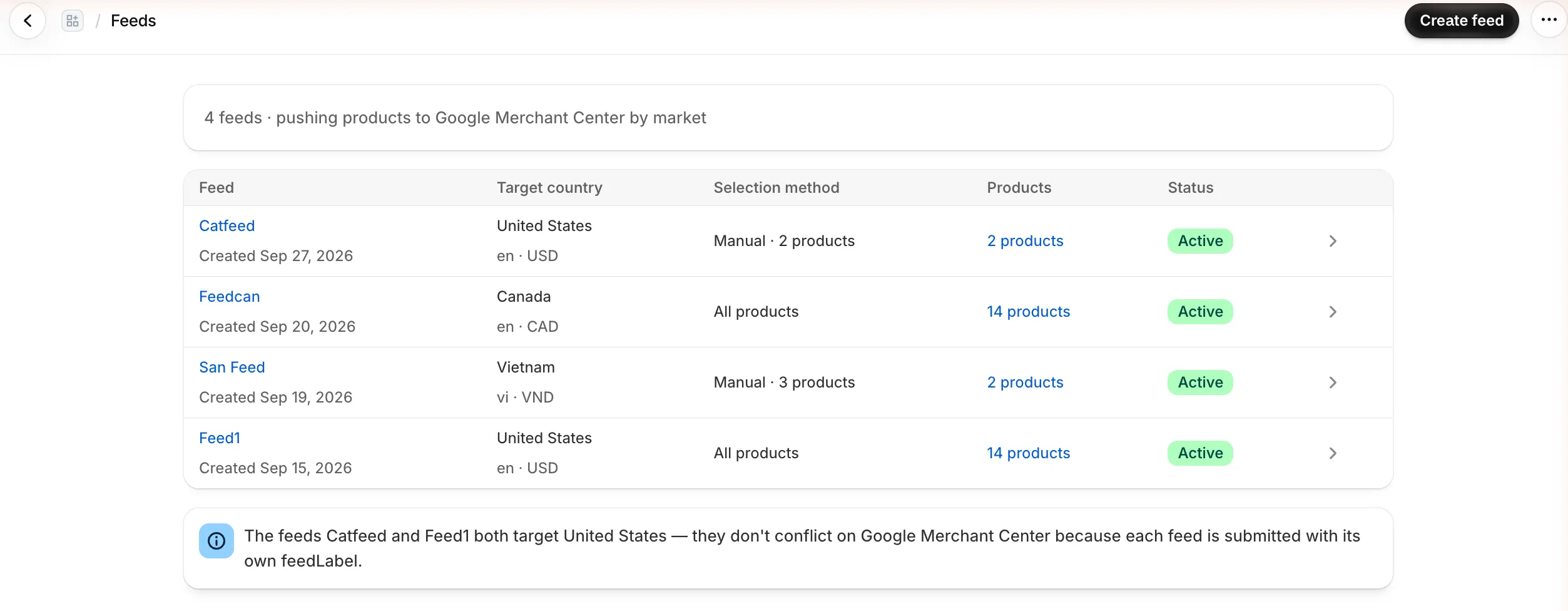
Create a feed
Section titled “Create a feed”Go to Feeds and select Create feed (or Create feed on the Dashboard). The form has five sections.
1. Basic information
Section titled “1. Basic information”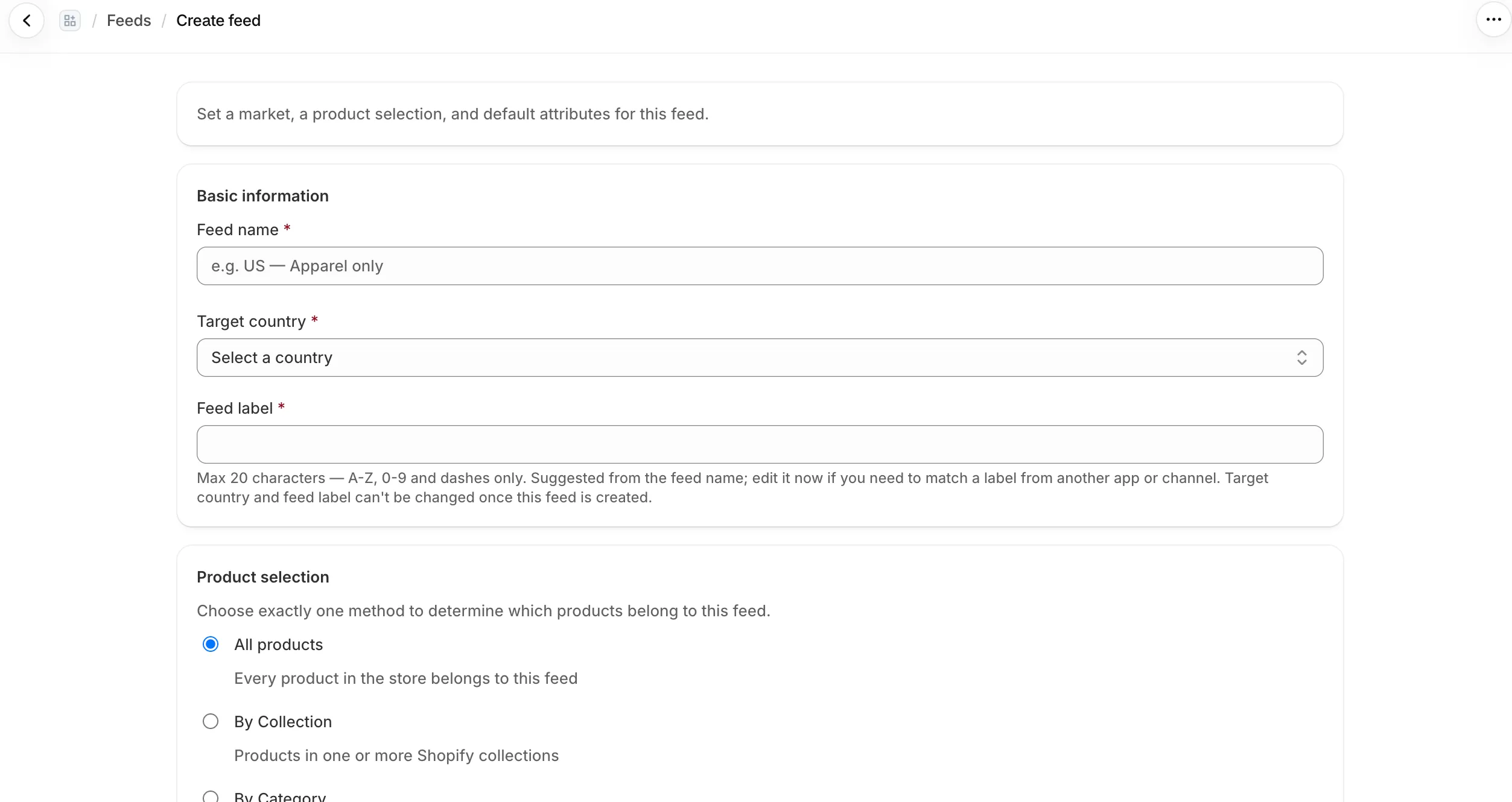
- Feed name — for you only, e.g.
US — Apparel only. - Target country — the list shows the countries in your enabled Shopify Markets. The feed uses that Market’s currency, prices and language.
- Feed label — how Merchant Center tells your feeds apart. Up to 20 characters: A–Z, 0–9 and dashes. Feeden suggests one from the feed name. Change it only if you need to match a label your previous app used.
2. Product selection
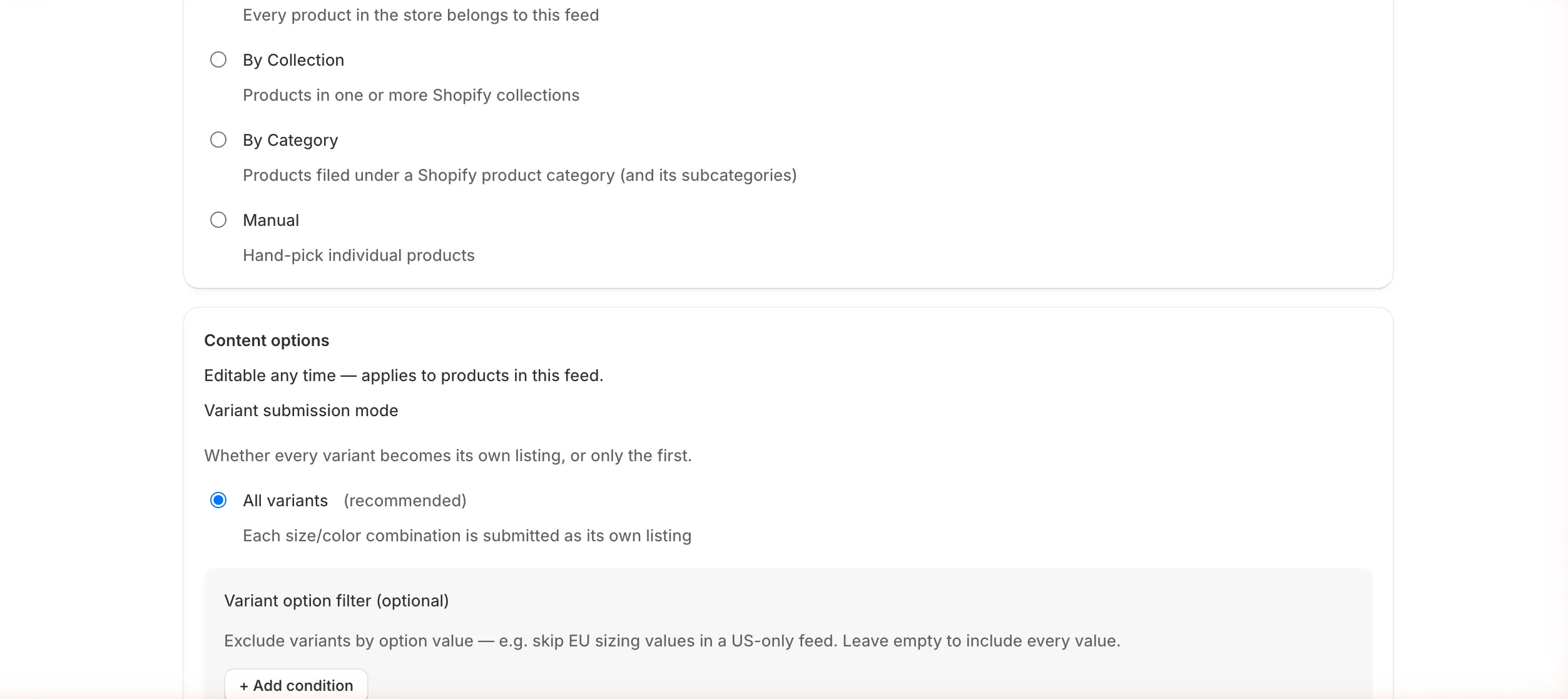
Section titled “2. Product selection”Choose one method:
| Method | Includes | Good for |
|---|---|---|
| All products | Every active product in the store | Your main feed for a market. |
| By Collection | Products in one or more Shopify collections | Bestsellers, a seasonal range, a brand. |
| By Category | Products filed under a Shopify product category and its subcategories | One product line, e.g. Apparel & Accessories › Clothing. |
| Manual | Products you pick one by one | A few hero products, tests. |
Collections and products you add later to a selected collection or category join the feed automatically.
3. Content options
Section titled “3. Content options”- Variant submission mode
- All variants (recommended) — each size/color combination is its own listing. Google can show the exact variant a shopper searched for.
- First variant only — one listing per product. Use it for catalogs with many near-duplicate variants (e.g. 40 engraving options) that Google would flag as duplicates.
- Variant option filter (optional, with All variants) — select + Add condition to skip variants by option value. Example: in a US feed, exclude the
SizevaluesEU 38,EU 40… Leave it empty to include every value. - Append variant name to title — sends “Classic Tee — Blue / M” instead of “Classic Tee” when a product has more than one variant. Keep it on so each variant has a distinct title.
4. Destinations
Section titled “4. Destinations”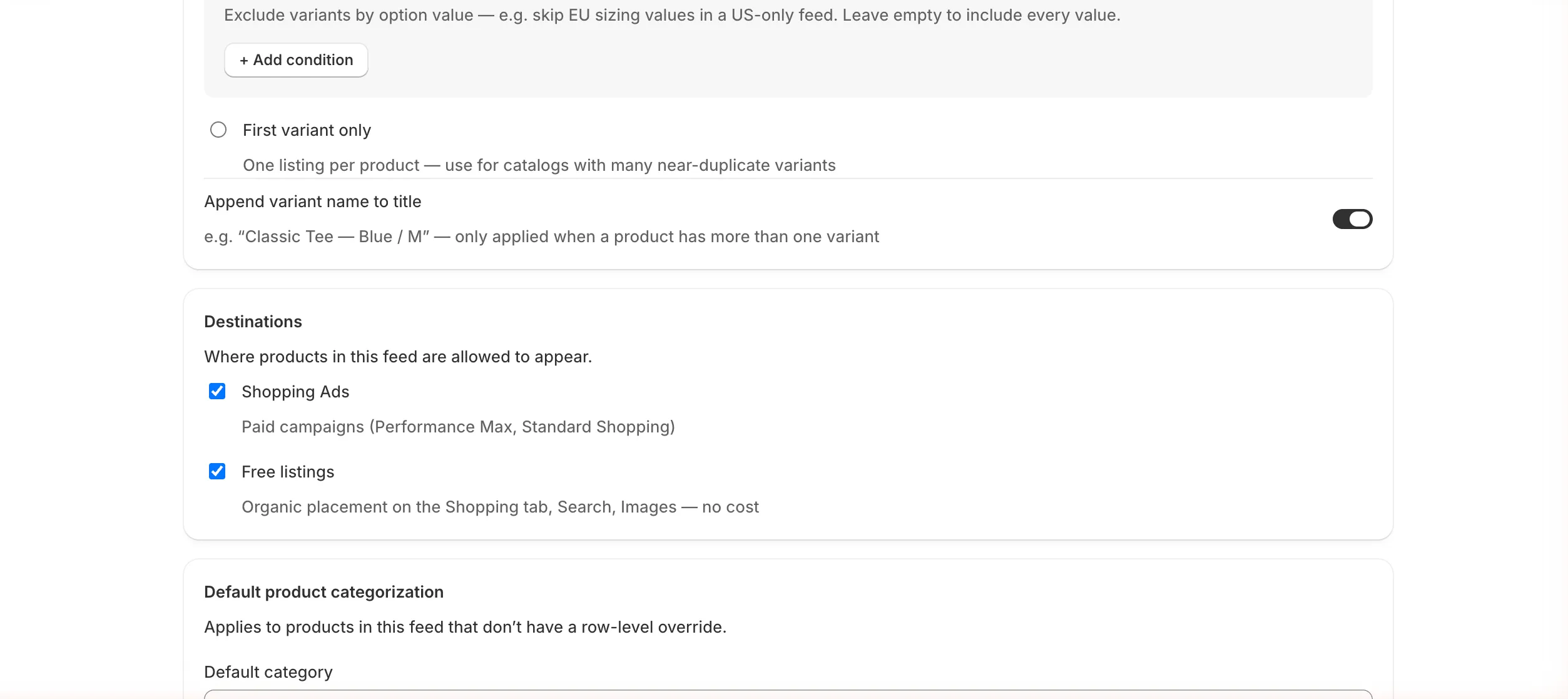
- Shopping Ads — paid campaigns (Performance Max, Standard Shopping).
- Free listings — organic placement on the Shopping tab, Search and Images, at no cost.
Both are on by default. Turn off Shopping Ads for products you don’t want to spend ad budget on.
5. Default product categorization and identifiers
Section titled “5. Default product categorization and identifiers”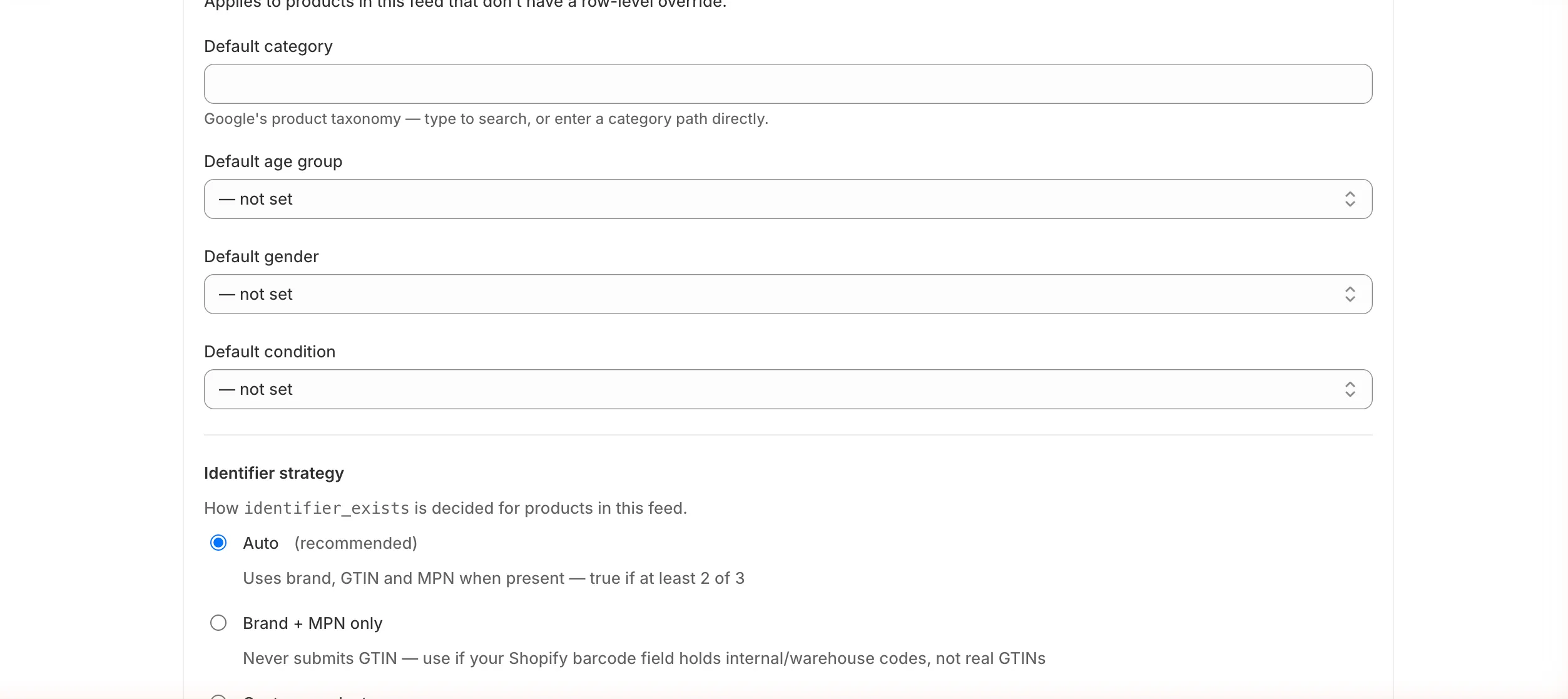
- Default category — a Google product category for products that don’t get one from mapping. Type to search Google’s taxonomy.
- Default age group, gender, condition — used for products that don’t have their own value. Required by Google for apparel in many countries.
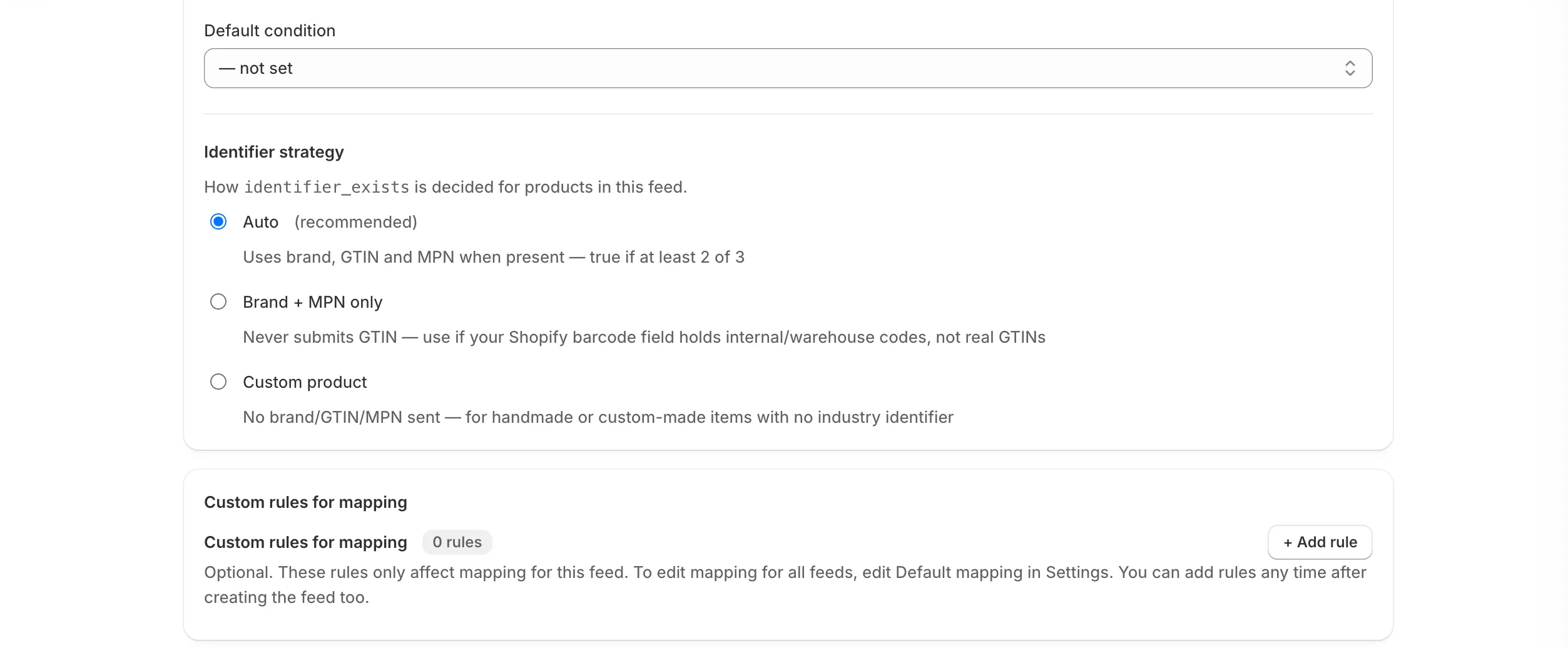
- Identifier strategy — how
identifier_existsis decided:
| Option | Use when |
|---|---|
| Auto (recommended) | Normal retail products. Feeden sends brand, GTIN and MPN when present; identifier_exists is true if at least 2 of the 3 exist. |
| Brand + MPN only | Your Shopify barcode field holds internal or warehouse codes, not real GTINs. GTIN is never sent. |
| Custom product | Handmade or made-to-order items with no industry identifier. No brand, GTIN or MPN is sent. |
Finally, Custom rules for mapping lets you add exceptions for this feed only — see Configure mapping. You can add them later too.
Select Save in the save bar at the top of the page. Feeden starts pushing the feed’s products to Google right away. They show as Pending in Manage Products until Google has reviewed them — usually minutes, sometimes a few hours.
After the feed is created
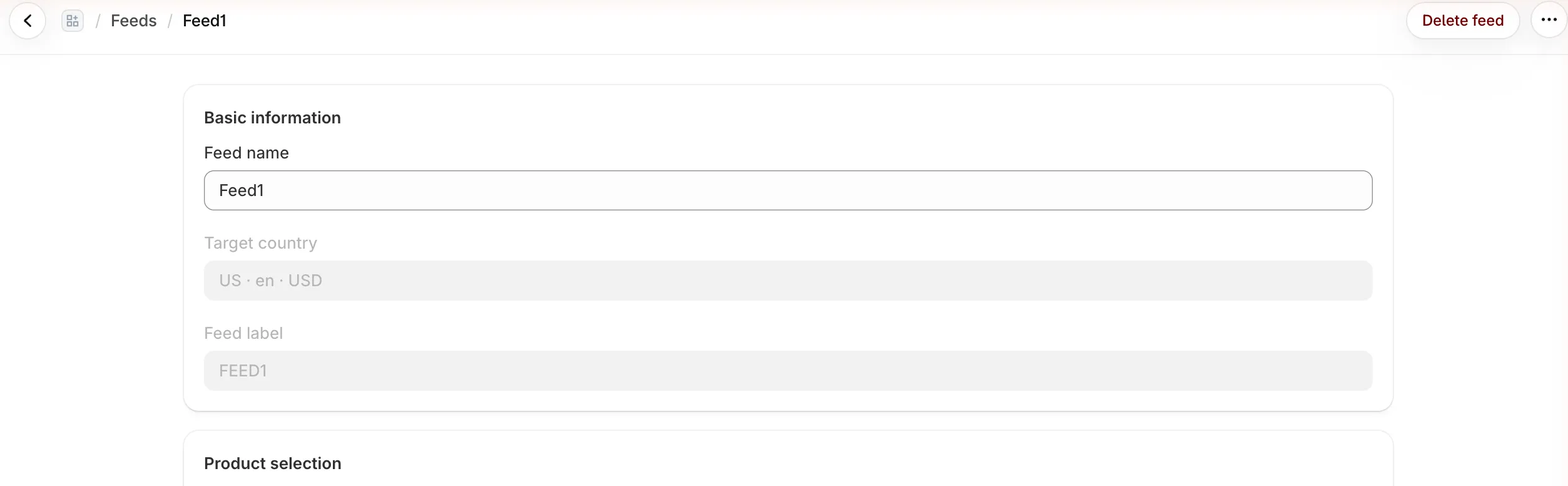
Section titled “After the feed is created”Open a feed from the Feeds page to edit it. The Target country and Feed label are greyed out; everything else can be changed.
At the bottom of each feed page:
- Static feed URL — an XML copy of the feed, regenerated every night. Add it in Merchant Center as a Scheduled fetch (Settings → Data sources) as a fallback, in case real-time sync is ever down or rate-limited. Select Copy to copy the URL.
- Delete feed (top right) asks whether to also remove the feed’s products from Merchant Center. Choose Delete feed only to keep them listed on Google until you remove them yourself.
The feed page also warns you about problems that stop products from being published:
| Warning | Fix |
|---|---|
| [Country] has no Shopify Market | Prices come from Shopify Markets, and no enabled Market covers the feed’s country. Add the country to a Market in Shopify admin. |
| No shipping synced for [country] | Google may disapprove products without shipping. Open Shipping settings and follow Set up shipping. |
Real-world setups
Section titled “Real-world setups”1. One country, everything
Section titled “1. One country, everything”Store: a US apparel brand selling only in the United States.
| Feed | Country | Products | Destinations |
|---|---|---|---|
| US — All products | United States | All products | Shopping Ads + Free listings |
Set Default age group = adult and leave the rest to mapping. This is all most single-market stores need.
2. Several countries
Section titled “2. Several countries”Store: sells in the US, Canada and Vietnam through Shopify Markets.
| Feed | Country | Products | Notes |
|---|---|---|---|
| US — All products | United States | All products | USD prices from the US Market. |
| CA — All products | Canada | All products | CAD prices; set a longer transit override in Shipping. |
| VN — Bestsellers | Vietnam | By Collection: Bestsellers | Start small in a new market. |
Each feed uses its own Market’s currency and language automatically. Make sure every country has shipping synced.
3. Separate budgets for bestsellers
Section titled “3. Separate budgets for bestsellers”Goal: spend more on bestsellers without splitting products by hand in Google Ads.
| Feed | Country | Products | Destinations |
|---|---|---|---|
| US — All products | United States | All products | Shopping Ads + Free listings |
| US — Bestsellers | United States | By Collection: Bestsellers | Shopping Ads |
Both feeds target the US without conflict, because each has its own feed label. In Google Ads, point a higher-budget campaign at the US-BESTSELLERS feed label.
4. Clearance on free listings only
Section titled “4. Clearance on free listings only”Goal: keep low-margin sale items visible without paying for clicks.
| Feed | Country | Products | Destinations |
|---|---|---|---|
| US — Full price | United States | By Collection: Full price | Shopping Ads + Free listings |
| US — Clearance | United States | By Collection: Sale | Free listings only |
5. One country, several size systems
Section titled “5. One country, several size systems”Store: each shoe has both US 8 and EU 41 size values. In the US feed, choose All variants and add a Variant option filter that excludes the EU values. In a German feed, exclude the US values instead.
Common errors
Section titled “Common errors”| Message | Fix |
|---|---|
| Feed name is required. | Enter a name. |
| Choose a target country from your enabled Shopify Markets. | The country isn’t in an enabled Market. Enable it in Shopify (Settings → Markets) first. |
| Feed label must be 1-20 characters — A-Z, 0-9 and dashes only. | Remove spaces, accents and other symbols. |
| This feed label is already used by another feed. | Pick a different label — each feed needs its own. |
| Select at least one collection. / Select at least one product. / Choose a category. | The selection method you picked needs at least one item. |
| Connect Google Merchant Center in Settings first. | Feeds can’t publish without a connected account. |