
Set up GA4 conversion tracking
Feeden can send a purchase event to Google Analytics 4 for every paid order, and a refund event for every refund, straight from its server using GA4’s Measurement Protocol. Unlike a browser tag, server-side events aren’t lost to ad blockers, browser tracking prevention or shoppers who close the tab before the thank-you page loads — so Google Shopping traffic gets credit for the sales it actually drives.
Events are only sent for shoppers who granted analytics consent.
Before you start
Section titled “Before you start”- A GA4 property with a Web data stream for your store’s domain.
- The GA4 tag already running on your storefront — for example through Shopify’s Google & YouTube app, Google Tag Manager, or
gtag.jsin your theme. Feeden ties each order to the shopper’s GA4 visit using the_gacookie that tag creates; without it, there’s nothing to attribute the purchase to. - If you sell to regions that require consent (EU, UK…), a cookie banner that uses Shopify’s Customer Privacy API — Shopify’s own banner does.
Step 1 — Get your Measurement ID and API secret from GA4
Section titled “Step 1 — Get your Measurement ID and API secret from GA4”-
In Google Analytics, open Admin (gear icon) → Data collection and modification → Data streams, and select your web stream.
-
Copy the Measurement ID in the top right. It looks like
G-8XK2P4QZ1M. -
On the same page, open Measurement Protocol API secrets. If asked, review and accept the user data collection acknowledgement.
-
Select Create, name the secret
Feeden, and select Create. Copy the Secret value (something likeZq3vT0mBRk2x9aLpW7n1Yg).
Step 2 — Turn on the app embed in your theme
Section titled “Step 2 — Turn on the app embed in your theme”Feeden’s small GA4 conversion tracking app embed reads the shopper’s GA4 client ID and consent choice on the storefront, and attaches them to the cart so they travel with the order.
- In Feeden, go to Settings → Tracking & Identifiers and select Open Theme Editor in the GA4 conversion tracking card. (Or in Shopify admin: Online Store → Themes → Customize → App embeds.)
- Turn on GA4 conversion tracking.
- Select Save in the theme editor.
The embed never touches checkout and never shows anything to shoppers. If you change themes later, turn it on again in the new theme.
Step 3 — Connect GA4 in Feeden
Section titled “Step 3 — Connect GA4 in Feeden”-
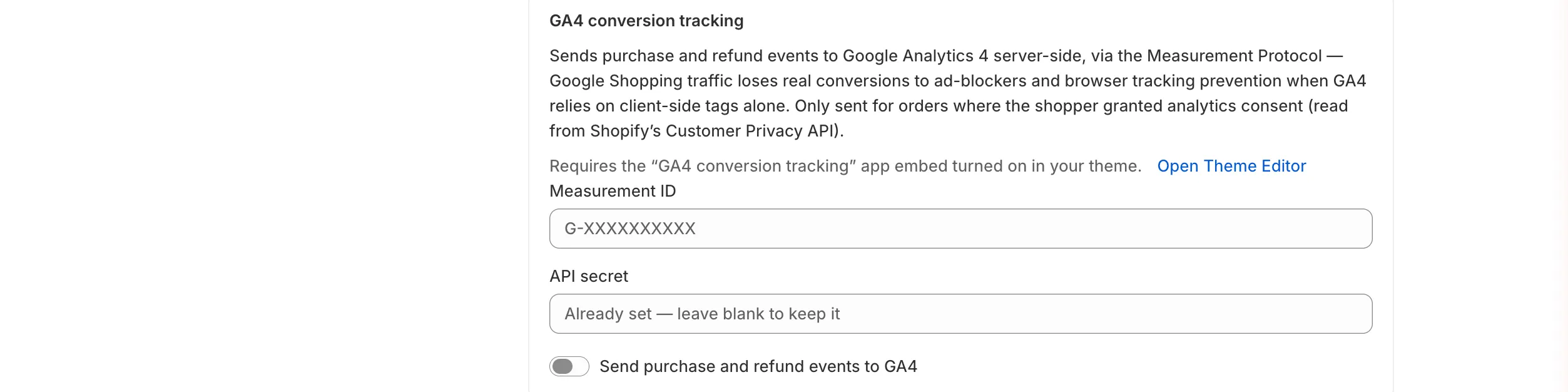
Go to Settings → Tracking & Identifiers and scroll to GA4 conversion tracking.
-
Paste the Measurement ID and the API secret.
-
Turn on Send purchase and refund events to GA4.
-
Select Save in the bar at the top of the page.
After saving, the API secret field shows “Already set — leave blank to keep it”. Feeden stores the secret encrypted and never shows it again. Paste a new one only if you want to replace it.
How it works
Section titled “How it works”- A shopper arrives from Google Shopping. Your GA4 tag sets the
_gacookie. - The app embed reads the client ID from that cookie and the shopper’s analytics consent, and saves both on the cart as
ga4_client_idandga4_consent. - The order is paid. Shopify notifies Feeden, which reads those two values from the order.
- If consent is
trueand a client ID exists, Feeden sends apurchaseevent to GA4. Otherwise it records the order as “no consent” and sends nothing. - When you refund the order, Feeden sends a
refundevent with the same transaction ID — but only if the purchase was sent.
Example
Section titled “Example”A shopper who accepted cookies buys 2 × Linen Shirt (Blue / M) at $39 and 1 × Canvas Tote at $24. Order #1042 totals $102.00 USD and its Shopify order ID is 5901234567890. Feeden sends:
{ "client_id": "1234567890.1727600000", "events": [{ "name": "purchase", "params": { "transaction_id": "5901234567890", "currency": "USD", "value": 102.00, "items": [ { "item_id": "44012345678901", "item_name": "Linen Shirt - Blue / M", "price": 39.00, "quantity": 2 }, { "item_id": "44012345678955", "item_name": "Canvas Tote", "price": 24.00, "quantity": 1 } ] } }]}A week later you refund the tote. Feeden sends a refund event with transaction_id: "5901234567890", value: 24.00 and the tote as the only item. GA4 subtracts it from that order’s revenue.
transaction_idis the numeric Shopify order ID (not the order name #1042). Search for it in GA4 explorations to find the order.item_idis the variant ID, so it matches the product IDs in your Google feed when you use the Variant ID format.
Check that it works
Section titled “Check that it works”- In a browser without an ad blocker, open your store, accept the cookie banner, and place a test order (use Shopify’s Bogus Gateway or your payment provider’s test mode).
- In GA4, open Reports → Realtime. The
purchaseevent should appear within a minute or two. - After 24–48 hours, check Reports → Monetization → Ecommerce purchases.
Avoid counting purchases twice
Section titled “Avoid counting purchases twice”If another tool already sends purchase events to the same GA4 property (for example Shopify’s Google & YouTube app or a GTM checkout tag), you may count sales twice. Both use the Shopify order ID as the transaction ID, which GA4 can use to recognise duplicates, but the safest setup is to keep one source of purchase events. Turn off purchase tracking in the other tool, or leave Feeden’s switch off.
Troubleshooting
Section titled “Troubleshooting”Validation errors when saving
Section titled “Validation errors when saving”| Message | Fix |
|---|---|
| Measurement ID and API secret are both required to turn GA4 tracking on. | Fill in both fields before turning the switch on. |
| Measurement ID should look like G-XXXXXXXXXX. | Copy the ID from the data stream, not the property ID (a number) or a Universal Analytics ID (UA-…). |
No purchase events in GA4
Section titled “No purchase events in GA4”Work through these in order:
- The switch is off — check Send purchase and refund events to GA4 is on and saved.
- The app embed is off — check App embeds → GA4 conversion tracking in your live theme.
- No GA4 tag on the storefront — open your store, open the browser’s developer tools → Application → Cookies, and look for
_ga. If it’s missing, install the GA4 tag first. - The shopper declined analytics cookies — by design, nothing is sent. Test with a browser where you accepted the banner.
- Ad blocker on the shopper’s side — if it blocks the GA4 tag, there’s no
_gacookie and Feeden can’t attribute the order. - Orders not placed through the online store cart — draft orders, POS and orders created by other sales channels don’t carry the cart attributes, so they’re skipped.
- Wrong secret — the API secret must belong to the same data stream as the Measurement ID. Create a new one in that stream if unsure.
Refunds don’t appear
Section titled “Refunds don’t appear”A refund event is only sent if Feeden sent the original purchase. Orders placed before you turned tracking on, or without consent, won’t get refund events.
Revenue in GA4 doesn’t match Shopify
Section titled “Revenue in GA4 doesn’t match Shopify”GA4 only counts consented shoppers with a GA4 client ID, so it will be lower than Shopify’s total. Taxes and shipping are included in value because Feeden sends the order total.